Figma plugin guide

Prepare screenshot text for every language

Four quick checks so LocalizeASO can translate App Store screenshots without breaking layout. Plain language — you do not need to be a Figma power user.

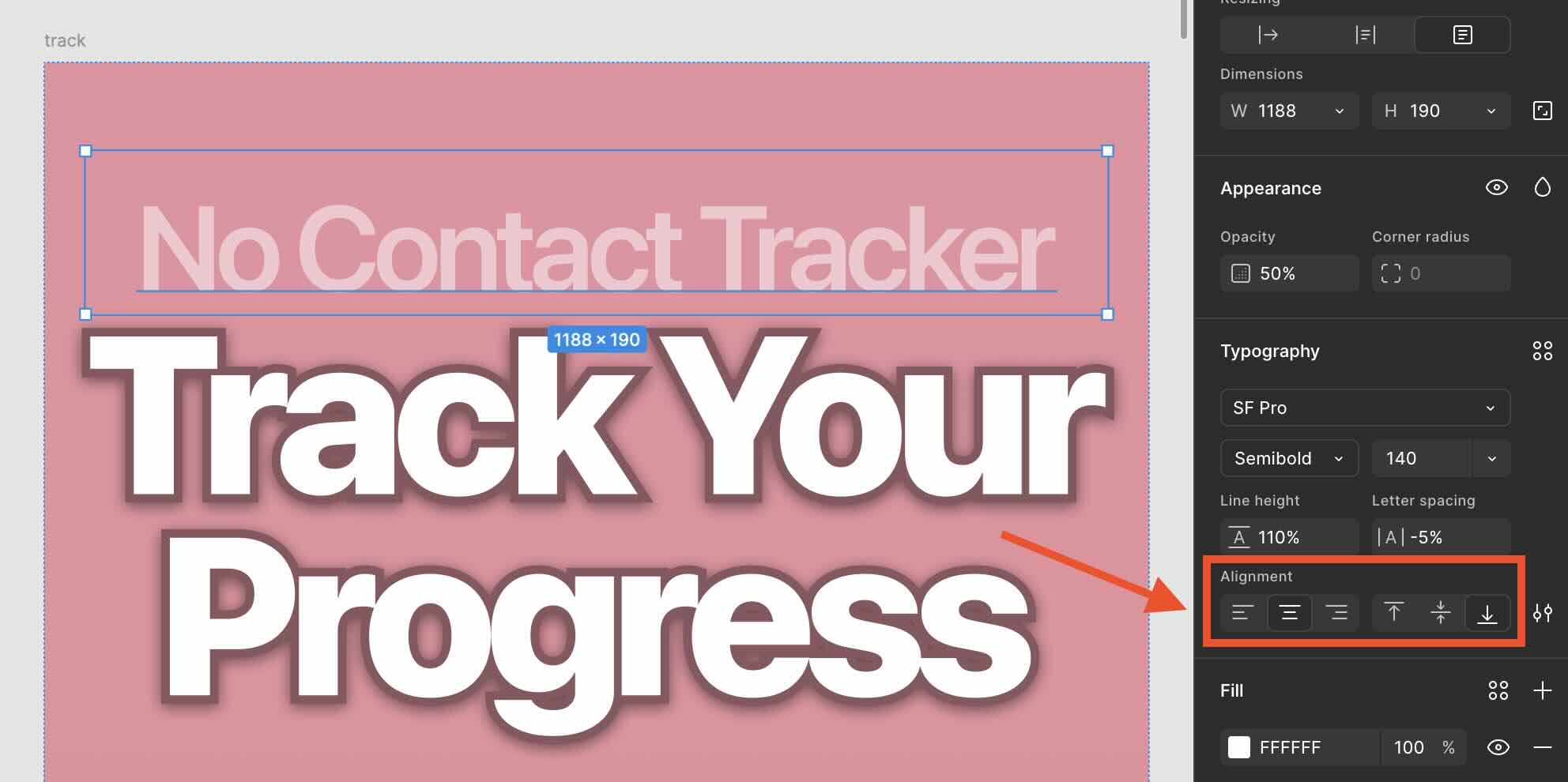
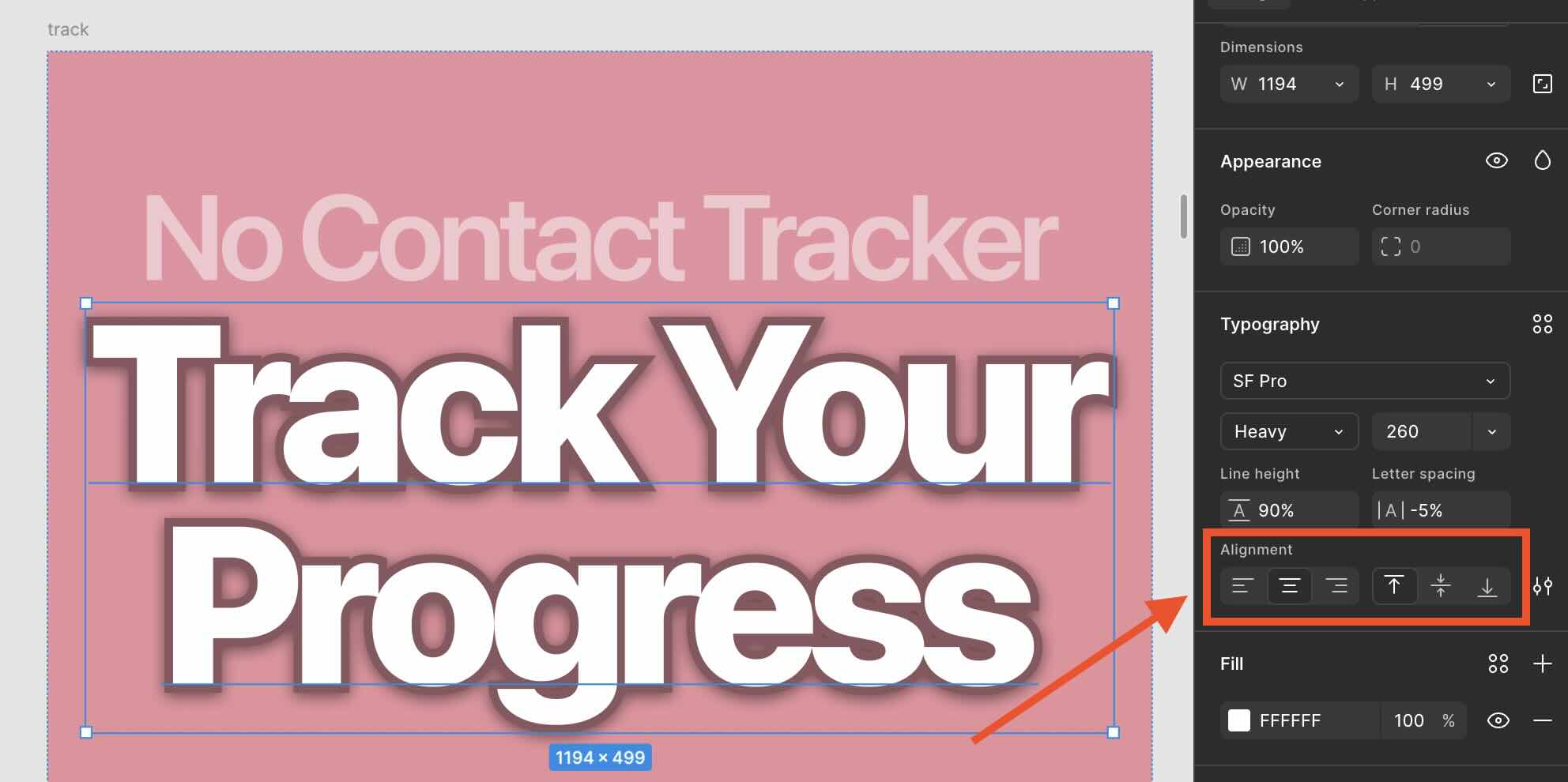
Give headline text extra room

Each text box is the “slot” every language must fit into.

  • Make the box a bit narrower than the screenshot frame.
  • Add height and width beyond what your English line needs.
  • Longer translations shrink to fit — they never spill outside the box.
Screenshot text box with padding inside the frame
Tap image to enlarge (desktop)

Keep related lines in one stack

Headline + subline should move together when copy grows.

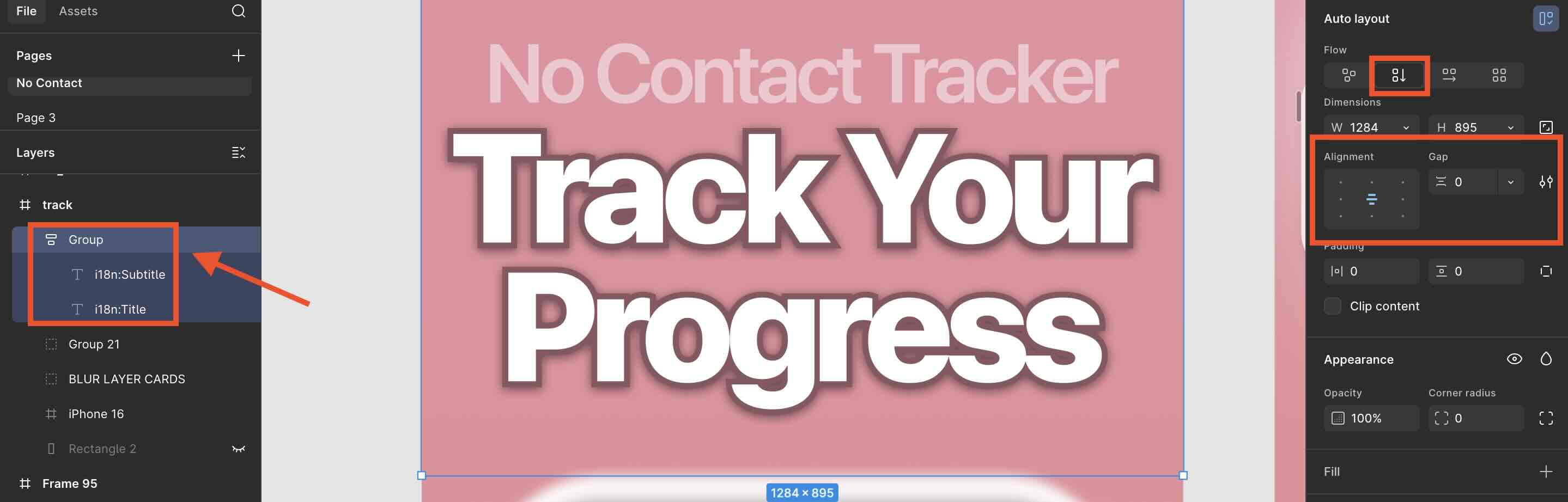
  • Select both text layers → Group (⌘G / Ctrl+G).
  • Turn on Auto Layout on the group.
  • Align the group where you want it on the screenshot.
Auto Layout group on a screenshot frame
Auto Layout padding and alignment
Grouped text layers in the layers panel
Tap any image to enlarge (desktop)

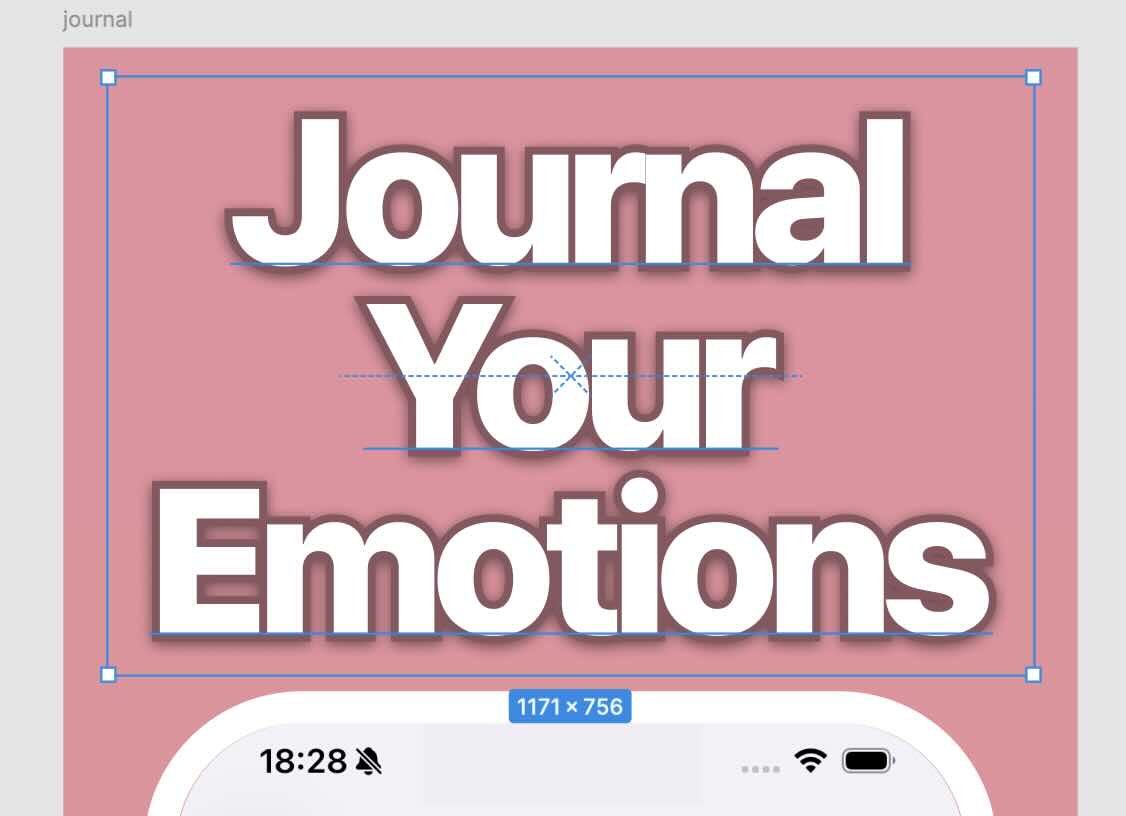
Avoid soft line breaks in the source

Let the plugin reflow lines. Only force a break when every language needs it.

Do

One continuous line in the text box.

Don't

Rely on the box width to wrap lines for you.

Press Enter only where the same break should appear in every translation.

Fix the master frame before other phone sizes

Your source screenshot is the template. Device previews and translated copies copy from it — fix structure there first.

Background / full bleed

Stretch to all four edges

Phone or app mockup

Center horizontally & vertically

Top headline block

Center X · pin to top

Bottom caption / CTA

Center X · pin to bottom

Stacked text or buttons

Group + Auto Layout, then pin the group

Workflow

  1. 1. Adjust the source frame (constraints + text boxes).
  2. 2. Preview iPhone / iPad sizes in the plugin.
  3. 3. Translate — only polish individual locales at the end if needed.

Text box defaults

  • Fixed width + height on important headlines
  • Extra vertical space for languages that need more lines
  • Headline size that still looks good if scaled down ~10–20%

New to the plugin? See the step-by-step workflow first.